

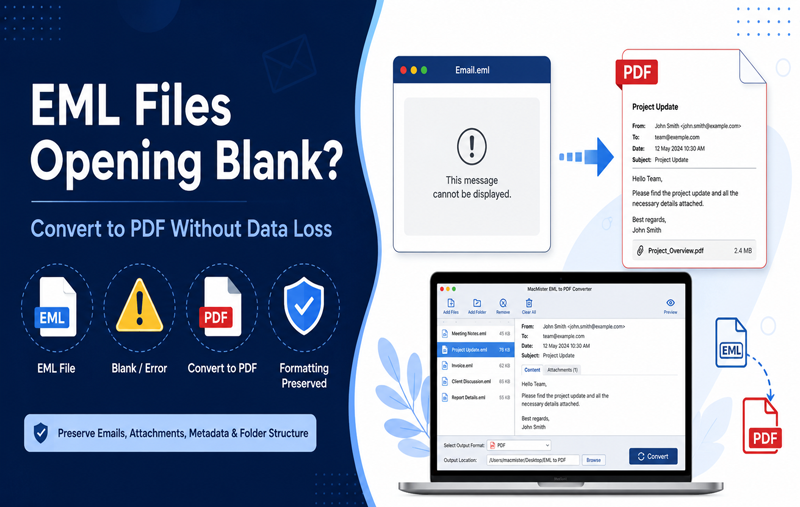

EML is a commonly used email file format that stores individual email messages along with their essential information, such as sender, recipient, subject, message body, date, hyperlinks, and attachments. When users have a large collection of EML files, managing or sharing them individually can become difficult. Converting these emails into PDF format provides a convenient way to access, archive, print, and share email data.
For Mac users looking to add multiple EML files to PDF in bulk mode, a dedicated conversion utility can make the entire process faster and more organized. The EML to PDF for Mac tool is designed to convert multiple EML files or complete folders into PDF format without requiring users to process every email separately.
Why Convert EML Files to PDF in Bulk?
Converting EML files one by one can be time-consuming, especially when hundreds or thousands of emails are involved. Bulk conversion allows users to select multiple files or an entire folder and process them together. There are several advantages of converting EML files to PDF in bulk -
- Saves time when handling large email collections.
- Makes email data easier to organize and archive.
- Creates universally accessible PDF documents.
- Helps users share emails without requiring a specific email client.
- Makes important email records easier to print and store.
- Reduces the effort required for individual file conversion.
How to Add EML Files to PDF in Bulk on Mac?
MacMister EML to PDF Converter provides a simple workflow for users who need to convert multiple EML files at once. Follow these steps to perform bulk conversion.
Step 1 - Launch the EML to PDF Tool - Install and open MacMister EML to PDF Converter for Mac on your system. The software provides a straightforward interface so users can perform the conversion without complicated technical steps.
Step 2 - Add Multiple EML Files or Folders - Click the option to Add File(s) and select the required EML files from your Mac. If all the emails are stored inside a particular folder, you can choose the folder-based option to add multiple EML files together.
This bulk-loading capability is useful when dealing with a large number of emails because there is no need to select and add each message individually.
Step 3 - Select the Required EML Data - After adding the files, review the selected EML emails within the software. Select the messages you want to convert and proceed with the output settings.
Step 4 - Choose PDF as the Output Format - Select PDF as the destination format. Choose a suitable location on your Mac where you want to save the converted PDF files. You can also use available file-naming options to organize the output more efficiently.
Step 5 - Start Bulk Conversion - Once the required settings have been selected, start the conversion process. The software processes the selected EML files and creates PDF copies in the chosen destination folder.
After conversion, users can open the resulting PDF files using Adobe Acrobat Reader, Preview, or another compatible PDF application.
Preserve Email Content During Conversion
For email archiving, simply converting the file is not enough; retaining important email information is equally important. MacMister EML to PDF Converter is designed to maintain essential email elements during the conversion process.
It can preserve information such as email headers, sender and recipient details, subject, date, message body, hyperlinks, images, signatures, and attachments. This helps users maintain a readable representation of their original email records in PDF format.
Key Features of EML to PDF tool for Mac
The Mac-based utility offers several features that make bulk EML conversion convenient -
- Supports bulk conversion of multiple EML files.
- Allows users to load complete folders containing EML data.
- Preserves important email properties and formatting.
- Retains attachments, images, hyperlinks, and signatures.
- Provides file-naming options for better output management.
- Offers an easy-to-use interface for all types of users.
- Maintains data accuracy throughout the conversion process.
- Supports various macOS versions for convenient email conversion.
Final Thoughts
Adding EML files to PDF in bulk mode is a practical approach for users who need to manage large collections of email messages. Instead of converting every EML file separately, users can load multiple files or complete folders and process them in a single workflow.
Mac EML Converter simplifies this task with bulk conversion capabilities and support for essential email properties. Whether the purpose is email archiving, documentation, sharing, or printing, converting EML files into PDF can provide a more accessible and manageable format for long-term use.