


The process of switching email clients and legacy backup compatibility is always problematic on the macOS platform. The biggest challenge that Mac users encounter when using emails is handling PST files—the proprietary format in which emails are saved by Microsoft Outlook on Windows.
If you have an incredibly huge PST file or are required to access your email archives on Mac, the task of opening such files may turn out to be complicated. The best way to export these PST mailboxes into separate EML files is known to many people.
Why Convert PST Mailboxes to Individual EML Files?
Converting a single, heavy PST database into individual EML files offers several key operational and technical advantages:
- Full macOS Compatiblity: EML is an established, open-format defined in RFC 822 which works natively with Apple Mail, Mozilla Thunderbird, SeaMonkey, and basic text viewers. An EML file can be opened at once just by double-clicking it, no need for Microsoft Outlook.
- Database Corruption Protection: A whole PST file can be corrupted beyond use in case of one storage sector failure or because of reaching file size limitations. Exporting to EML files separates each message from others and ensures their safety.
- Native Indexing & Searching With Spotlight: Spotlight cannot index internal structure of closed PST files on macOS. Exporting to EML format makes Spotlight able to index bodies, subjects, senders and dates of all emails natively, providing instant searching through your system.
- Micro-Archiving & Compliance: EML makes organizing, filtering, sharing or auditing messages individually without the need for distribution of whole gigabytes-sized mailboxes.
The Challenges of Manual PST Conversion on macOS
The attempt to deal with PST files on Mac OS via the native applications of Mac OS or alternative solutions ends in several inconvenient obstacles:
- No Built-in Apple Mail PST Filter: There is no PST filter built into Apple Mail that allows importing PST files directly into the application.
- Outlook for Mac Shortcomings: Though Outlook for Mac has the possibility to import some Unicode PST files, it doesn't provide the user with the function of mass export of mailbox structure into EML files. The mass dragging of emails results in freezing of the program, losing inline graphics, and metadata.
- ANSI Encoding Problems: Old PST files created in the older versions of Outlook (2002 or even older) are ANSI encoded 32 bits and aren't compatible with any contemporary Mac software.
The Solution: Batch Convert PST to EML Using MacMister PST Converter
For safely and efficiently converting multi-gigabyte PST archive files without data loss, crashes of applications, and repetitions, MacMister Mac PST Converter Tool is suggested.
This utility, designed especially for macOS systems, allows selecting large PST files or directories containing many PST files and exporting them into well-structured EML files in bulk.
Key Features of MacMister PST Converter:
- Provides Add Files and Add Folder tools to batch convert numerous large PST files at once.
- Handles conversion of legacy 32-bit ANSI PST files (for Outlook 2002 or earlier versions) and the 64-bit Unicode PST archives without restriction on file sizes.
- Runs as a fully independent application on macOS without installing Microsoft Outlook or having an active Microsoft 365 subscription.
- Saves all email header fields like To, From, CC, BCC, Date, Subject, rich format, images, and attachments of the converted message.
- Duplicates the Outlook mailbox hierarchy exactly in the target output folder.
- Features flexible naming conventions like Subject + Date, From + Subject, or Auto Increment for properly naming EML files.
- Natively runs on all macOS including Apple Silicon (M1, M2, M3, M4) and Intel processor-based operating systems.
Step-by-Step Guide: How to Batch Export PST to EML on Mac
Follow these steps to perform a batch conversion using the MacMister utility:
Step 1. Download MacMister PST Converter for Mac and open the application on your Mac system.
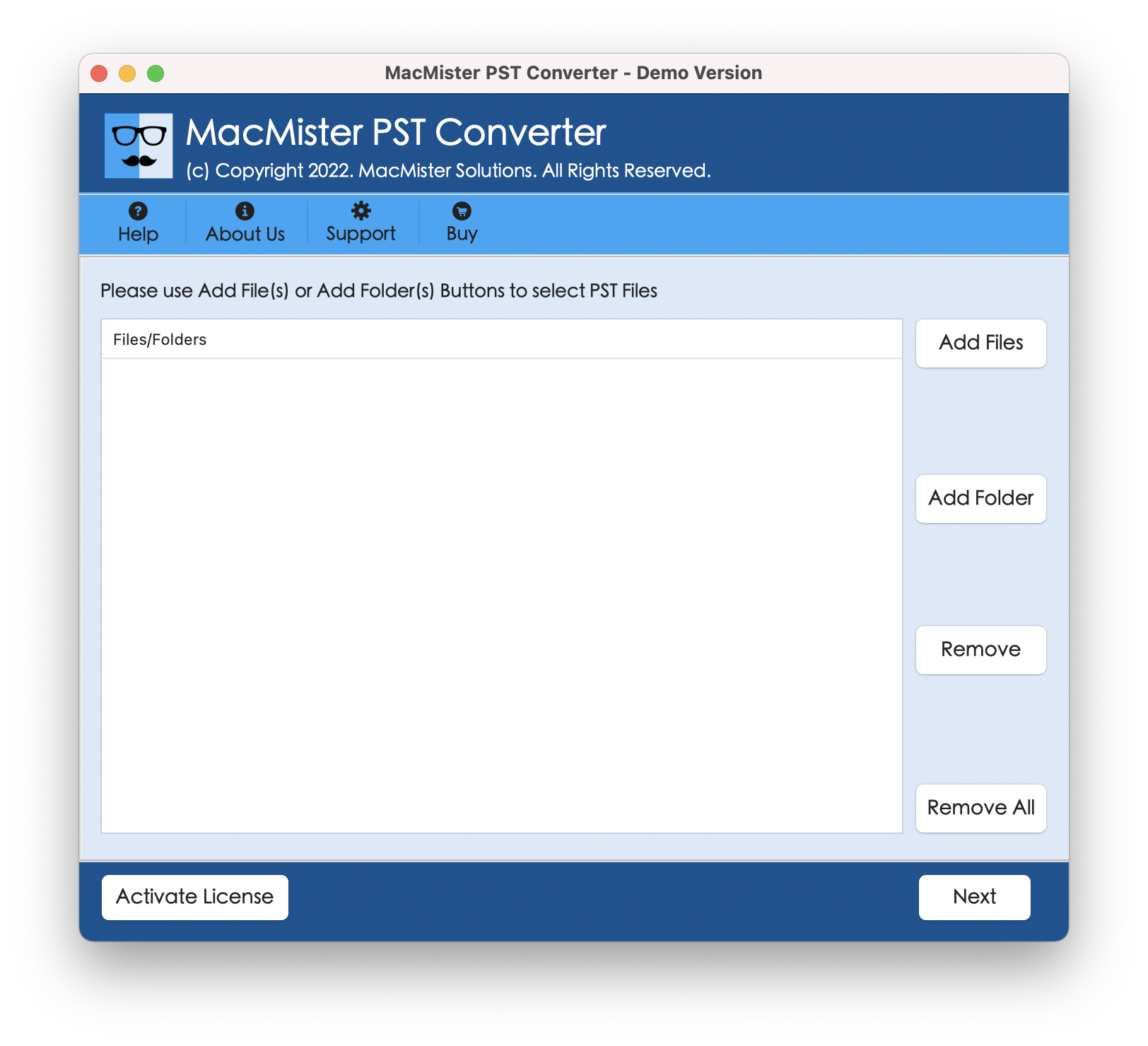
Step 2. Click Add Files to choose individual PST files, or select Add Folder to import an entire directory containing multiple large PST mailboxes.
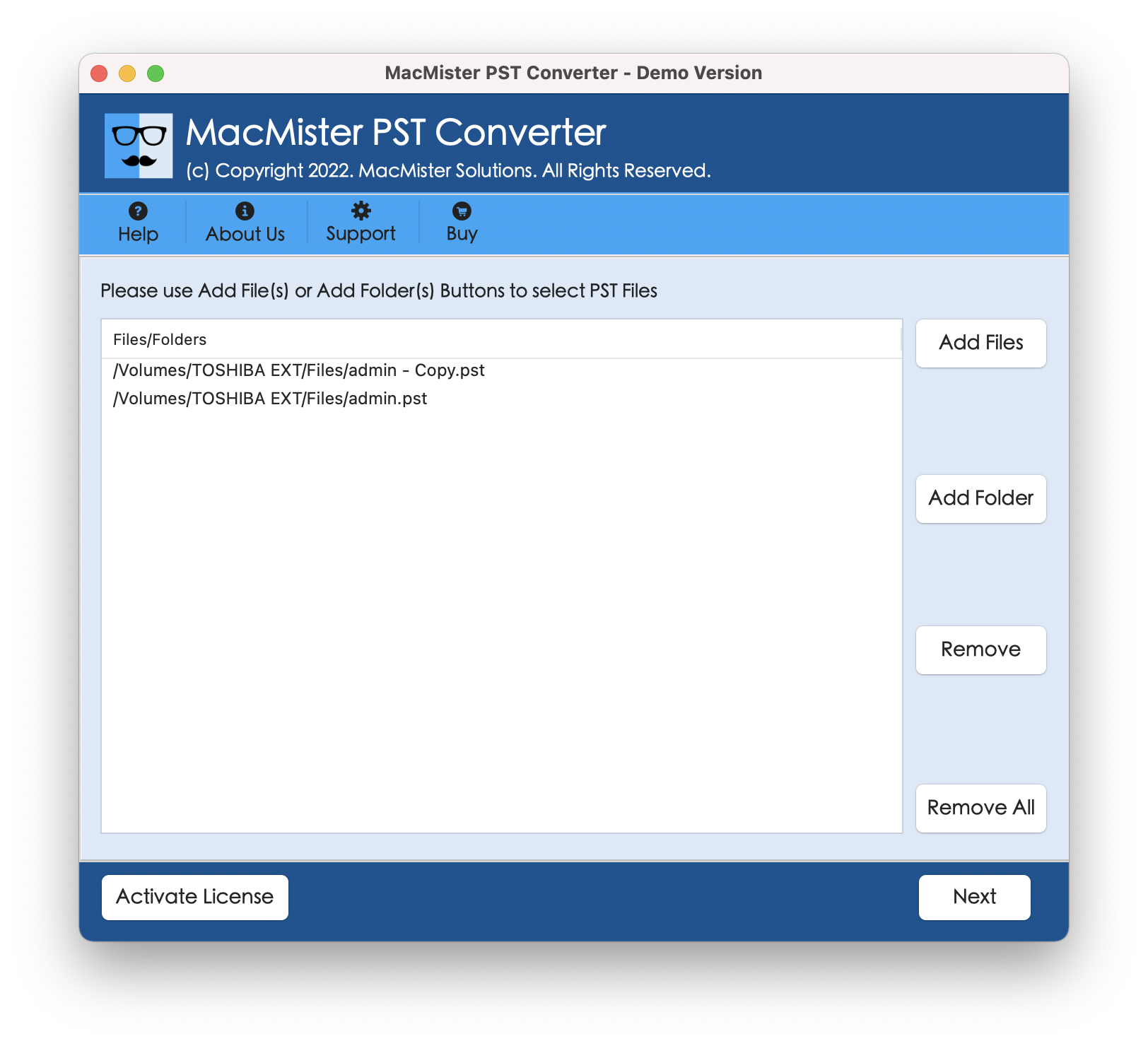
Step 3. The utility scans the loaded files and displays an interactive folder tree. Check or uncheck specific folders (e.g., Inbox, Sent Items, or custom project folders) as needed.
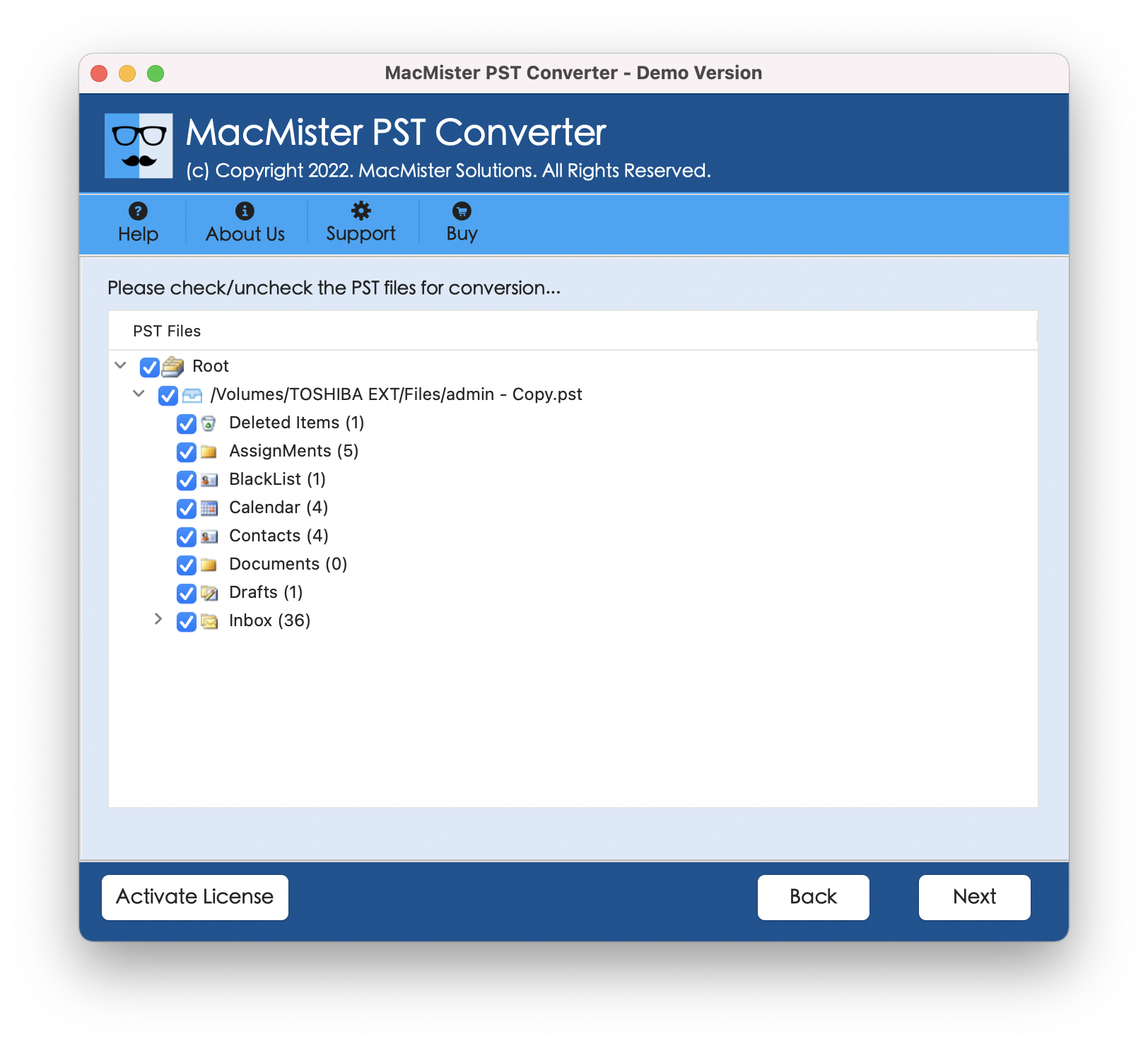
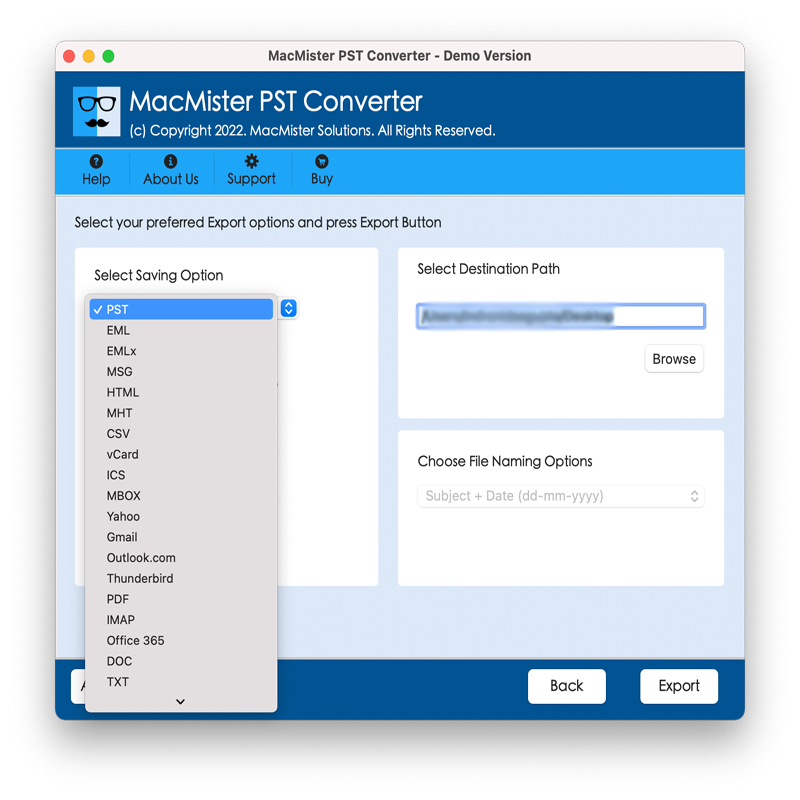
Step 4. Click the Select Saving Option dropdown menu and choose EML from the list of export formats.
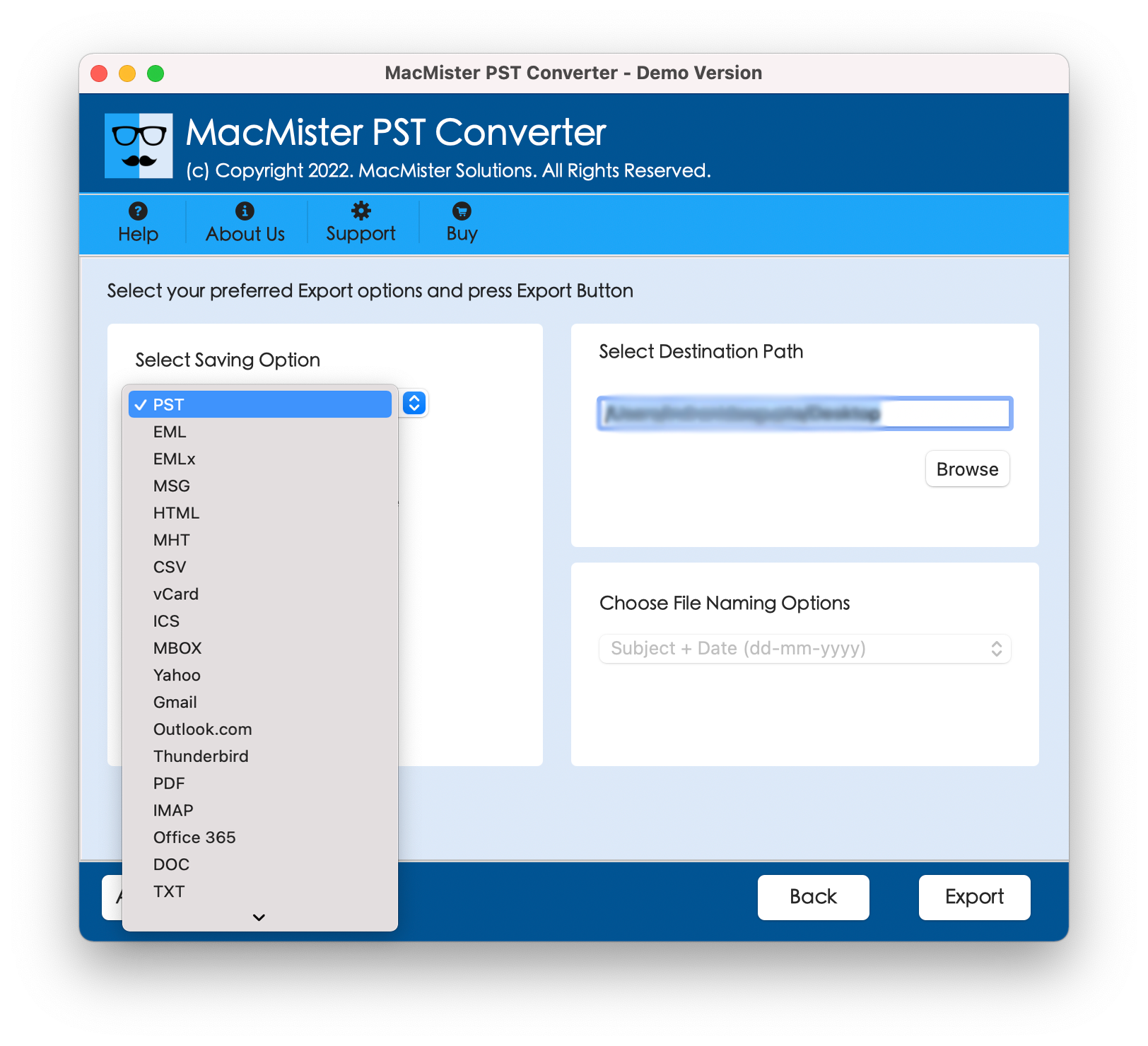
Step 5. Set other options appearing under EML according to the requirements.
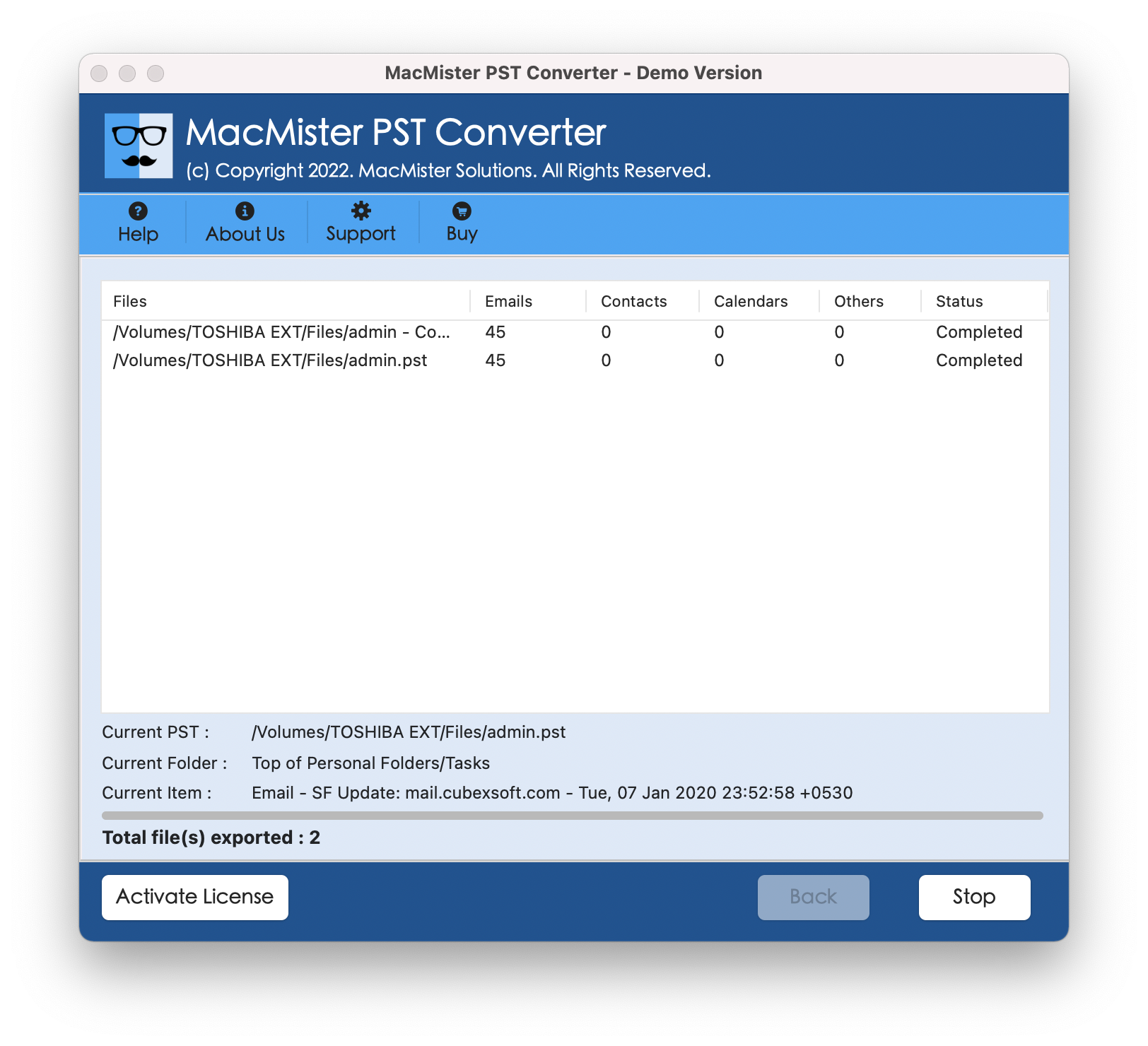
Step 6. Tap Export button to start the process. The software displays a real-time progress bar along with a detailed conversion log upon completion.
Importing Converted EML Files into Apple Mail
Once your PST emails are converted to EML format, importing them into Apple Mail takes just a few clicks:
- Open Apple Mail on your Mac.
- Go to File > Import Mailboxes... in the top menu bar.
- Select Files in MBOX or EML format (or standard folder import) and click Continue.
- Navigate to the destination folder where your converted EML files were saved by MacMister and click Choose.
- All converted messages will appear in a new Imported folder in the left sidebar, fully indexed and searchable via Spotlight.
Alternatively, you can simply drag and drop converted EML files or folders directly into any mailbox in Apple Mail.
Conclusion
The most efficient method for rendering PST mailboxes usable for the modern Mac operating system is by batch conversion of the entire mailbox into EML files. This process is impossible to do manually if working with gigabyte-size PST archives, while MacMister PST Converter for Mac will offer you a fully automatic, accurate, and standalone solution.