


Microsoft Outlook for Mac stores all the information about email, contacts, calendar, tasks, and notes of a user in an OLM (Outlook for Mac) data file. Therefore, learning how to extract or convert an OLM file on a Mac is important for many reasons: if you change email clients, want to switch to another platform, or wish to archive your mailbox data.
Since Outlook’s proprietary format is not supported by other email clients, the task of importing an OLM file into another program may seem complicated to some users. This article will explain how to open or extract an OLM file on Mac to see the data it stores, and introduce the best professional solution for performing this task.
Understanding the OLM File Structure
By default, Outlook for Mac stores all of the program’s data in the local profile. When you use the built-in export tool, it saves all of the mailbox items in a single file called “.olm”.
The reason why you need to extract Outlook for Mac files is that other email clients, including the default Apple Mail, are unable to open or import “.olm” files. Besides, if you want to migrate the data to a Windows PC or convert mailbox items to a standard document format like PDF or MBOX, you will need a proper tool to extract and convert “.olm” files.
The Ultimate Solution: MacMister OLM Converter
The most reliable way to unlock and convert OLM files on a Mac is not manual intervention but the right tool. MacMister's Mac OLM Converter is a specialized industry utility that can tackle the challenge of decoding OLM data streams and extracting data in over 15 formats.
MacMister OLM Converter Key Benefits
- Easy drag and drop to convert multiple OLM files and folders at once.
- Save converted data in more than 15 file formats, including PST, PDF, MBOX, EML, HTML, CSV, Office 365, Gmail, and others.
- Extract emails with attachments, contacts (vCard), and calendars (ICS).
- Perfect folder hierarchy and data (To, From, Subject, etc.) are retained. All items (Inbox, Sent Items, etc.) and subfolders are reconstructed during conversion.
- Runs on the latest macOS versions, including macOS Sonoma and Sequoia, and Apple Silicon (Intel, M1, M2, M3, M4).
- Your privacy is our priority: MacMister OLM Converter works locally on your computer, and no data is ever transmitted over the Internet.
Step-by-Step: How to Extract OLM Files Using MacMister
Extracting your Mac Outlook data using the software requires just a few straightforward steps:
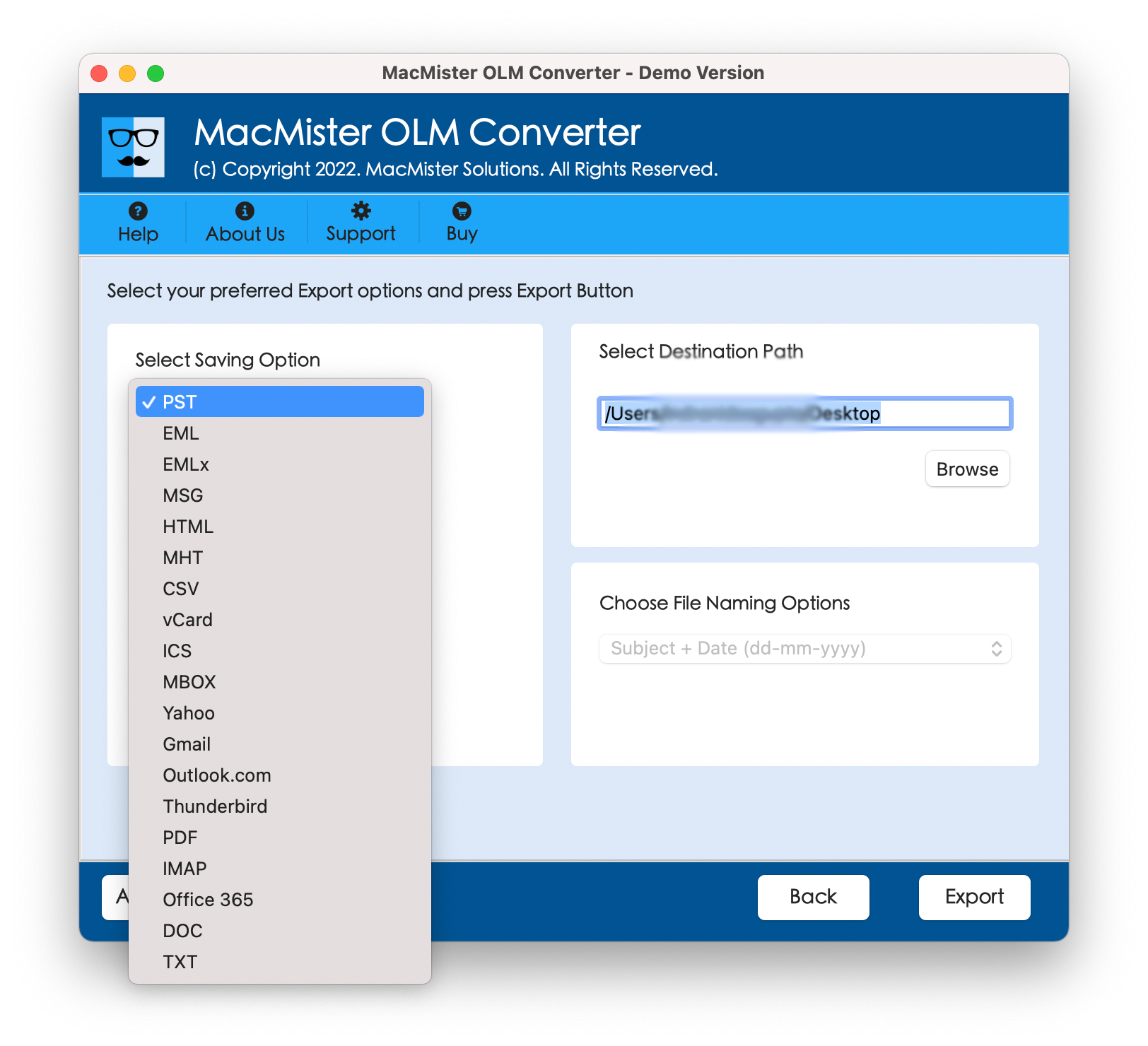
Step 1. Download, install, and open the MacMister OLM Converter on your macOS system.
 a
a
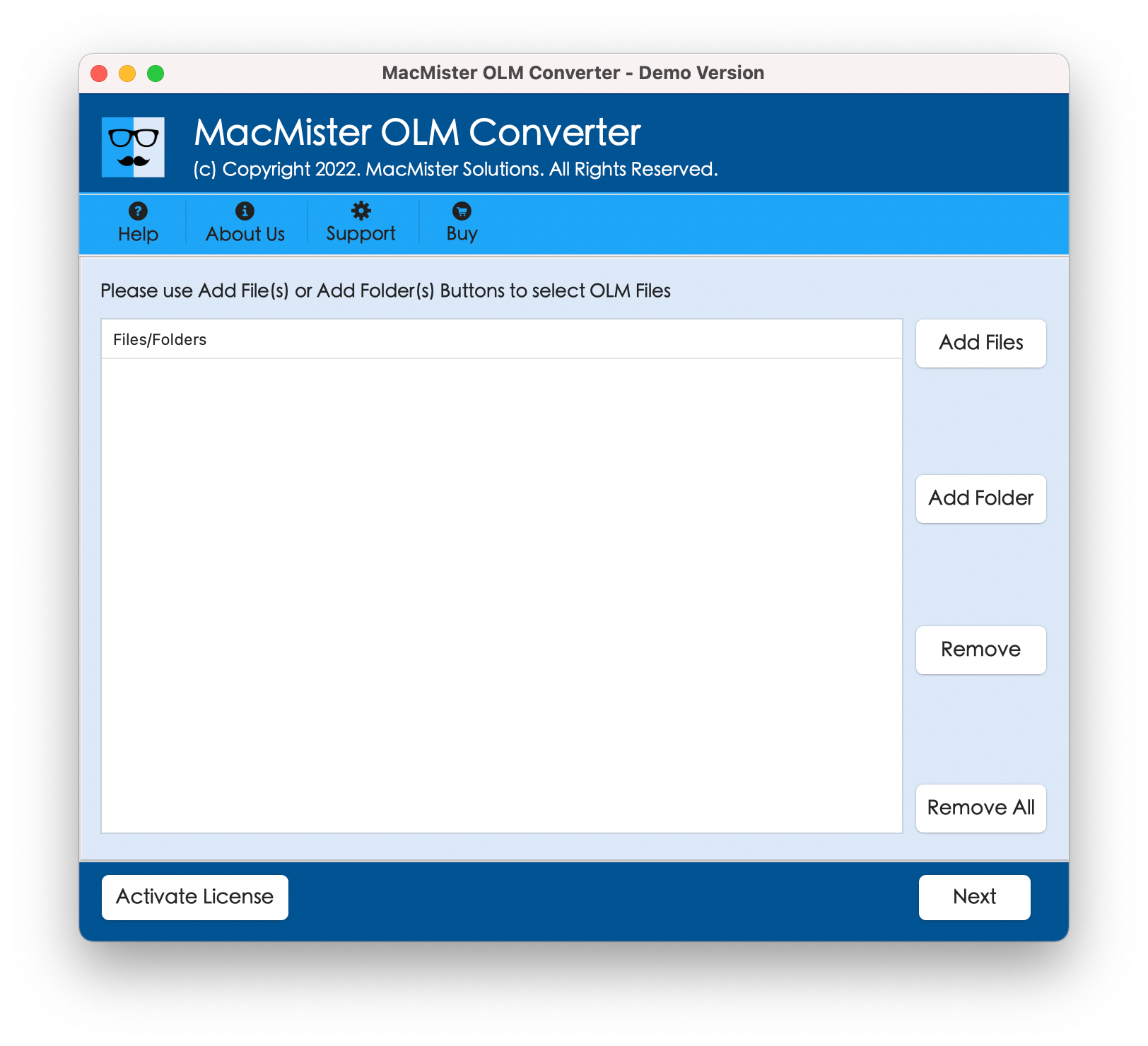
Step 2. Click on the Add File(s) or Add Folder(s) button to browse and upload your target OLM files into the workspace.
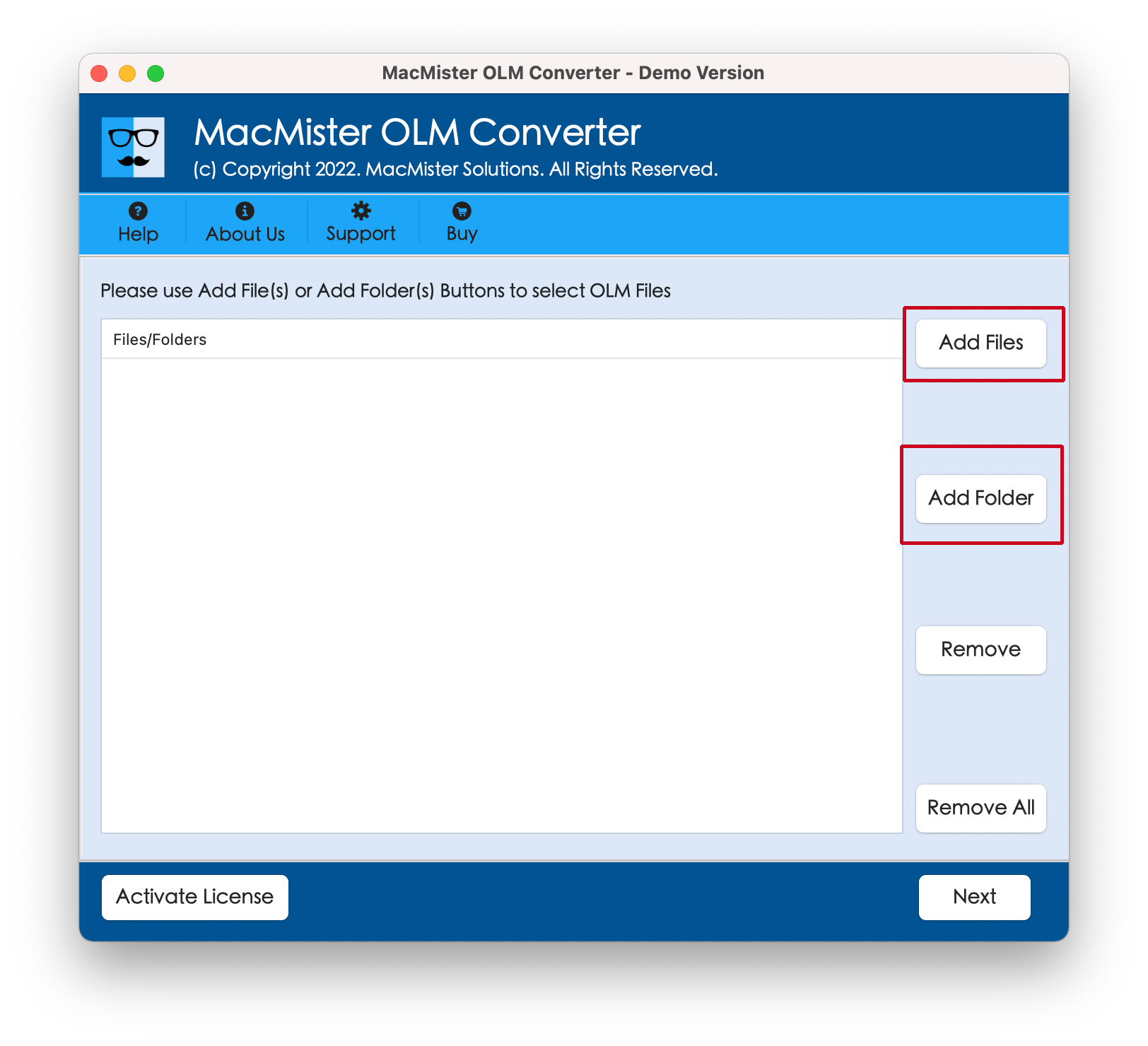
Step 3. Review your mailbox items, folder structure, and attachments within the software's built-in preview pane before final extraction.
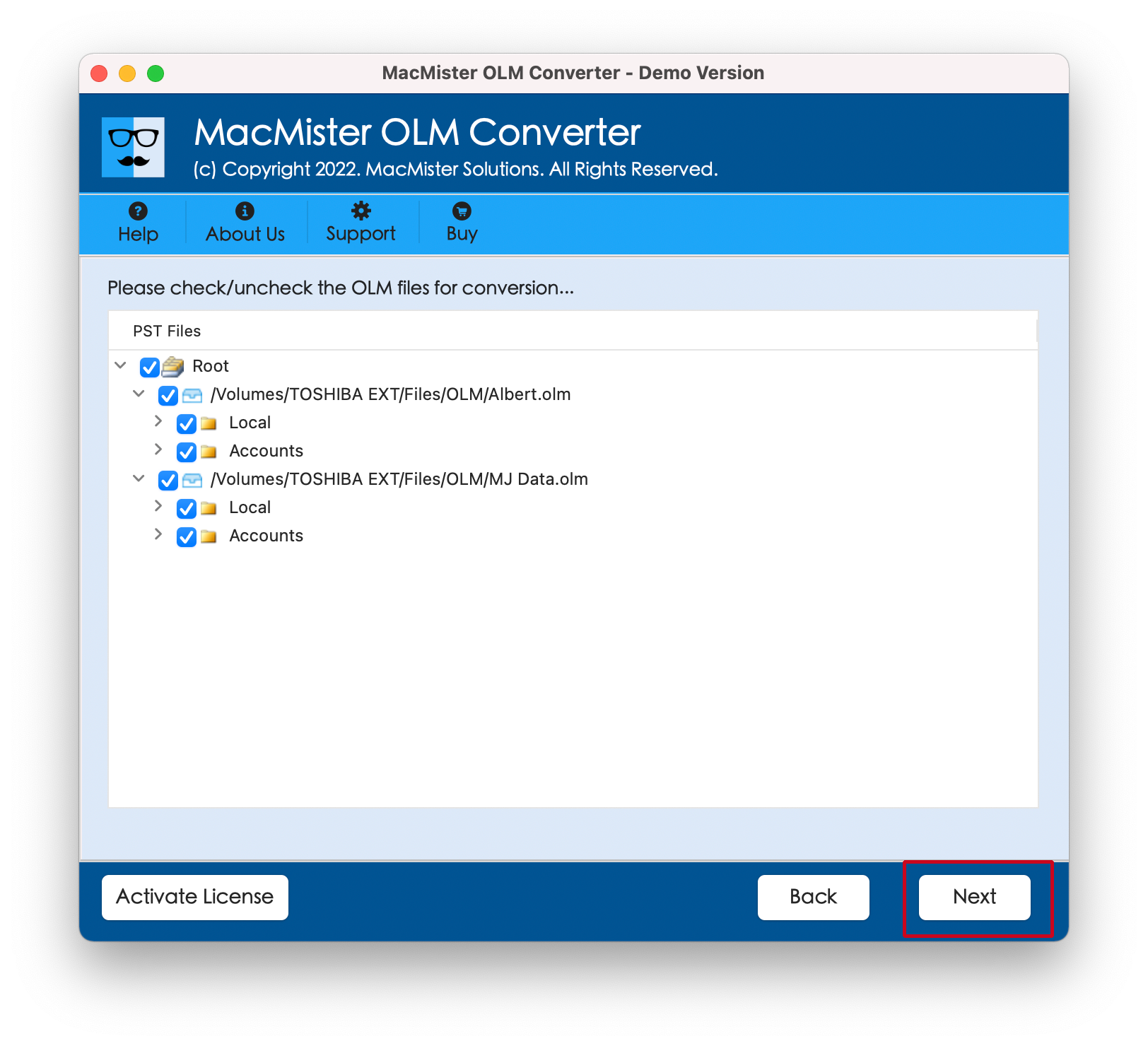
Step 4. Navigate to the Select Saving Option menu and pick your desired format (e.g., PST for Windows Outlook, PDF for archiving, or MBOX for Apple Mail/Thunderbird).
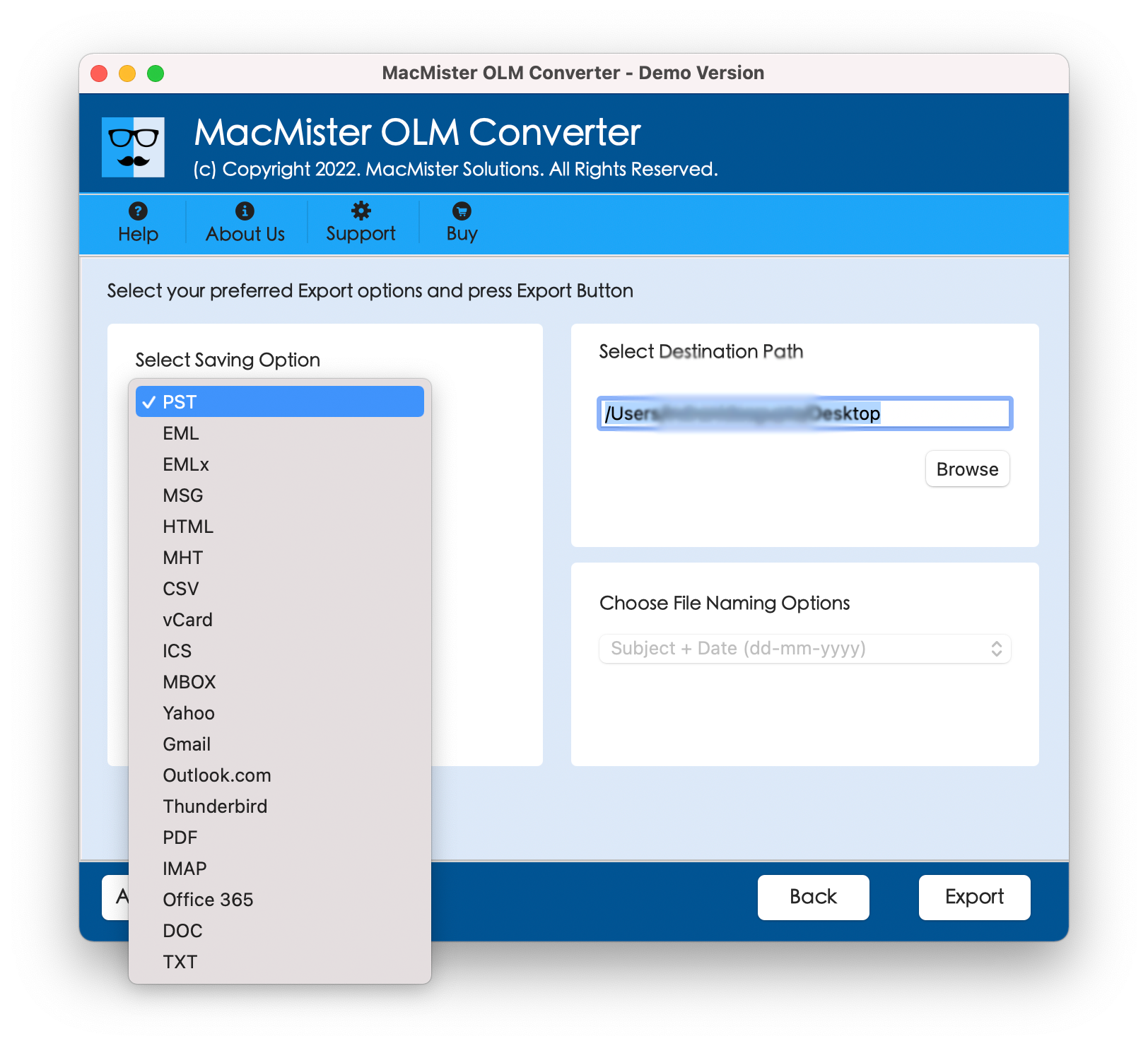
Step 5. Set other options as per requirements, then click the Export button to begin the extraction process.
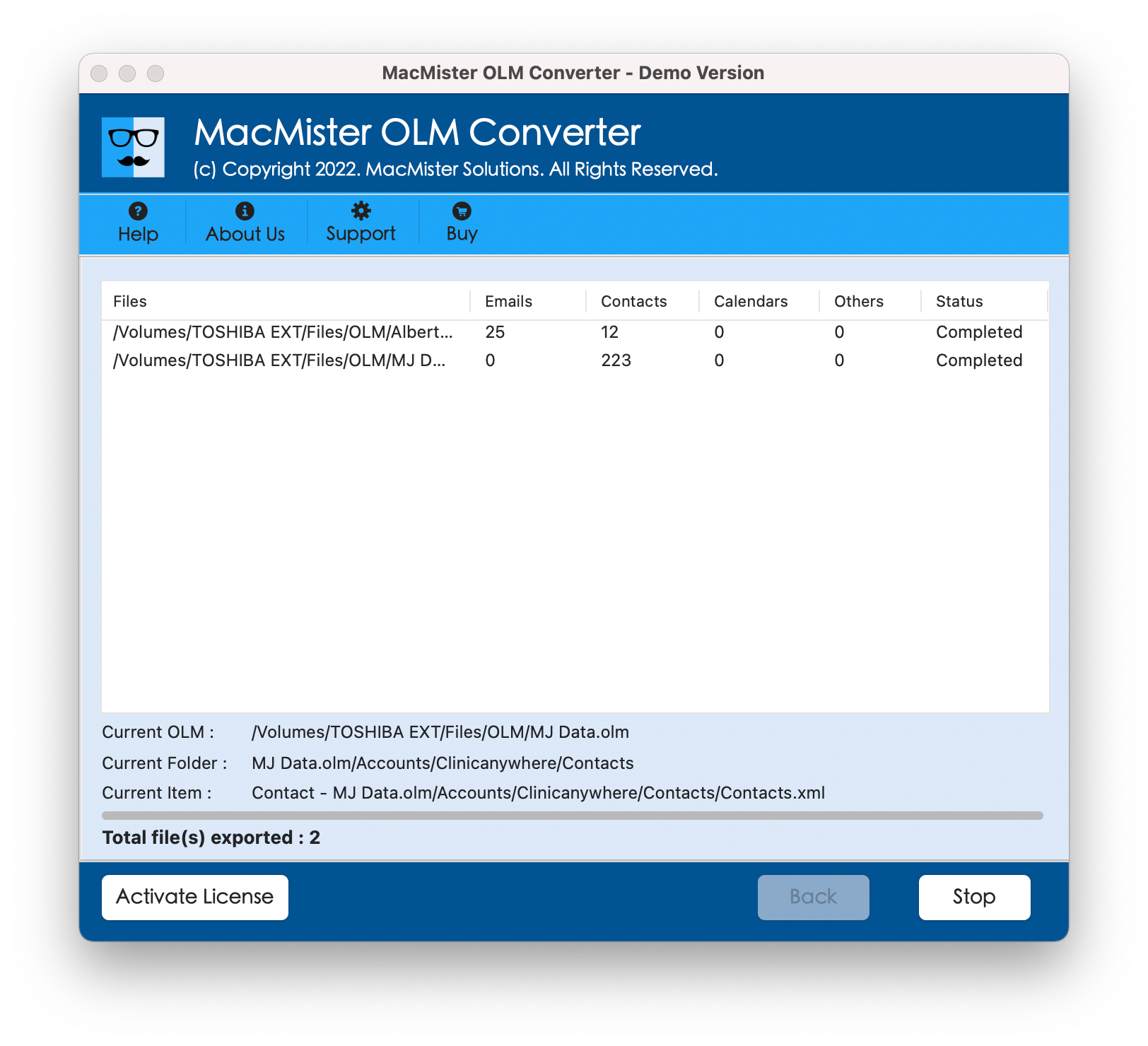
Step 6. Check and track live extraction process of OLM files.
Conclusion
Managing and extracting your OLM files on the Mac OS is a piece of cake. With Outlook, you can convert your mailbox to OLM, but if you need to export it somewhere else, and access it, too, you will need an advanced utility that will help you solve this task. You can use a professional solution MacMister OLM Converter that extracts all your data without loss and preserve the folder structure to let you enjoy your emails, contacts, and calendar events on any platform.