

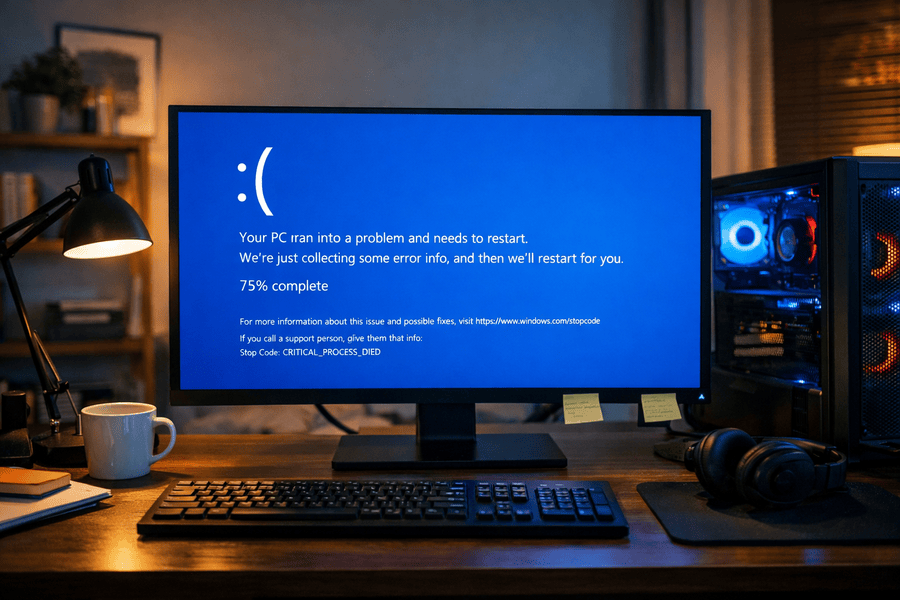
The Blue Screen of Death (BSOD): A diagnostic checklist for Windows users to determine software or a hardware failure

Understanding the Blue Screen of Death (BSOD)
The Blue Screen of Death, officially known as a Stop Error, is the way a Windows operating system protects itself from further damage. When the system identifies a conflict it cannot resolve, it halts all operations to prevent data corruption or physical hardware burnout. While seeing a bright blue screen with a sad face or a QR code is stressful, it is actually a vital safety feature.
Finding a permanent Blue Screen of Death solution starts with observing the specific error code provided at the bottom of the screen. In 2026, these codes have become highly specific, often pointing directly to a memory leak or a power supply inconsistency. Whether your screen is flickering before the crash or the system simply reboots without warning, a professional laptop screen repair or a deep internal diagnostic can often save a machine that appears to be completely broken.
The Software Diagnostic Checklist
Software conflicts are the primary cause of system instability in the modern era. Because Windows 11 and its successors rely on a massive web of third-party drivers and background services, a single bad update can cause a total system hang. Use the following steps to rule out software issues before spending money on new parts.
Identify Recent Changes
The most common trigger for a BSOD is a change in the environment. If you recently installed a new antivirus program, a specialized design tool, or a high-end video game, start there. Incompatible software often tries to access restricted memory zones, leading to a "System Service Exception" error.
Check for Pending Windows Updates
In 2026, many system crashes are actually caused by "half-installed" updates. If your computer lost power or internet during a background update, the system files may be in a mismatched state. Check your update settings and ensure all "Optional Updates" and "Driver Updates" are fully processed.
Utilize Safe Mode for Testing
Safe Mode is a diagnostic environment that loads only the bare essentials. If your computer runs perfectly in Safe Mode but crashes during a normal boot, you have 100% proof that your hardware is healthy. The problem is definitely a piece of software or a driver that is loading during the standard startup sequence.
Review the Device Manager
Look for yellow exclamation marks in your Device Manager. These symbols indicate that a specific piece of hardware like your webcam or Wi-Fi card is struggling to communicate with Windows. Updating or "Rolling Back" these drivers is a frequent and effective Blue Screen of Death solution.
The Hardware Failure Checklist
If your computer continues to crash even in Safe Mode, or if the blue screen happens while you are in the BIOS menu before Windows even starts, you are likely facing a hardware failure. Physical parts have a finite lifespan and can be affected by the humid Sydney climate or simple wear and tear.
Test Your System Memory (RAM)
Faulty RAM is the "usual suspect" for random, unpredictable blue screens. If you see errors like "Memory Management" or "Page Fault in Nonpaged Area," your RAM sticks may have developed physical defects. Use the built-in Windows Memory Diagnostic tool to scan for hardware errors that require a physical replacement of the memory module.
Monitor Internal Temperatures
Heat is the enemy of electronics. If your laptop feels hot to the touch or if your fans are spinning at maximum speed right before a crash, your system is likely thermal throttling. When a processor reaches a dangerous temperature, it will trigger a BSOD to shut down the system and prevent the silicon from melting.
Evaluate Your Storage Health
Solid State Drives (SSDs) are incredibly fast, but they can fail without much warning. If you notice that files are taking longer to open or that Windows "freezes" for a few seconds before the blue screen appears, your primary drive may be reaching the end of its life. Errors like "Inaccessible Boot Device" are clear indicators of a storage problem.
Inspect the Power Supply
For desktop users, a failing power supply unit (PSU) can cause the system to crash under load. If your PC works fine while browsing the web but blue screens the moment you start a high-end game or a video render, the PSU might be failing to provide the consistent voltage required by the graphics card.
Decoding Common Stop Codes
|
Stop Code |
Primary Suspect |
Recommended Action |
|
WHEA_UNCORRECTABLE_ERROR |
Physical Hardware |
Check CPU and Voltage |
|
CRITICAL_PROCESS_DIED |
System Files or Drive |
Run System File Checker |
|
IRQL_NOT_LESS_OR_EQUAL |
Driver Conflict |
Update Network/GPU Drivers |
|
KMODE_EXCEPTION_NOT_HANDLED |
Software/Incompatibility |
Uninstall Recent Software |
Strategic Recovery Steps
Once you have narrowed down the cause, the path to a Blue Screen of Death solution involves methodical steps. If the issue is software, using a "System Restore Point" can take your computer back in time to a date when it was perfectly stable. This is a life-saver for professionals who cannot afford to lose their local configurations and app settings.
If the problem is hardware, don't panic. Many components, such as RAM or storage drives, are modular and can be replaced without buying a whole new computer. Keeping your system clean of dust and ensuring it has proper airflow is the best way to prevent these hardware-related crashes from happening in the first place.
Why Professional Diagnosis Matters?
While a checklist can help you identify the symptoms, a professional technician has the tools to find the exact "silent" failures that a standard user might miss. Testing voltages, checking for microscopic cracks in a motherboard, or recovering data from a corrupted sector requires specialized equipment and a clean environment to ensure no further damage occurs.
Comprehensive Tech Support in Sydney
Resolving a complex system crash requires a deep understanding of how modern hardware and software interact. Computer Repair Sydney is dedicated to providing the most reliable technical support in the region. Beyond finding a permanent BSOD solution, we offer a vast range of services to keep your digital life running perfectly. Our experts are highly skilled in laptop repairing & powerful custom built gaming systems, covering everything from motherboard micro soldering to high-level data recovery.
Whether you need a professional laptop screen replacement in Sydney or a complete system overhaul for your business workstation, we provide the precision and care your technology deserves. Let us handle the technical frustrations so you can get back to work or gaming with total peace of mind.